Everything that applies to any contest, whatever its class: from creating the account to publishing the results.
What GliderLink Web is
It is a web application for running RC glider contests and scoring them. It replicates the calculation of GliderScore 6, so you can import a GliderScore database and get the same scores, and the timekeepers' app already used at the field works with it unchanged.
The available classes are F5J, F5L, ALES, speed (F3F, F3D and F3E), F3K and F5K.
Who is who
Organizer: one account is one organizer, just as one .mdb file is one organizer in GliderScore. Its competitions and tables are its own and are not shared. An organizer registers and the platform administrator approves the account.
Pilot: there is a single record per email across the whole platform. Each organizer has their own list of pilots and only sees those. A pilot's data is changed by the pilot, with a link sent to their email; an organizer can only fill in what is empty.
Timekeeper: needs no account. They send flights from the app or from the pilot's QR code.
Public: sees the live results of the competitions the organizer has made public, without logging in.
Competition states
A competition goes through these stages. The buttons in the Summary change its state, and several changes happen on their own.
State
What it means
In preparation
Only the organizer sees it. It is set up and tested.
Published
It appears on the public pages.
Registration open / closed
Pilots register online. It opens and closes by itself on the dates you set.
Drawn
Rounds and groups exist. You can score.
Running
It switches to this state when the first flight is entered.
Finished
The contest is over. It becomes read-only.
Archived
Hidden from the lists. It can be unarchived and goes back to the state it had.
Access and account
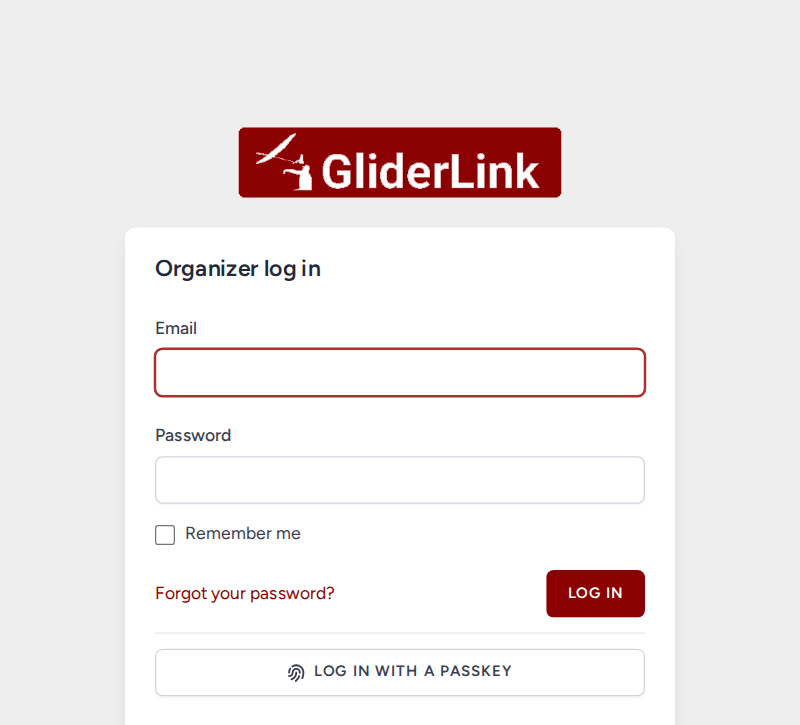
Organizer log in.
Sign up: with Register as organizer. The account stays pending until the administrator approves it, and you are notified by email. The administrator can also create the account and send an invitation to choose the password.
Log in: with email and password, or with Log in with a passkey (fingerprint, face or security key on your device).
Forgot your password?: a link is sent to your email. The answer is the same whether the account exists or not, so it does not reveal who is registered.
My account
In My account you change the account details, the organizer name (shown on the public pages of your competitions) and your Preferences:
Language: English, Spanish, French, German, Czech, Italian and Catalan.
Text size: 100, 125 or 150 %. It makes the text and the rest of the screen bigger on every page and on all your devices.
Security: change the password (with the current one or with a link to your email) and register passkeys.
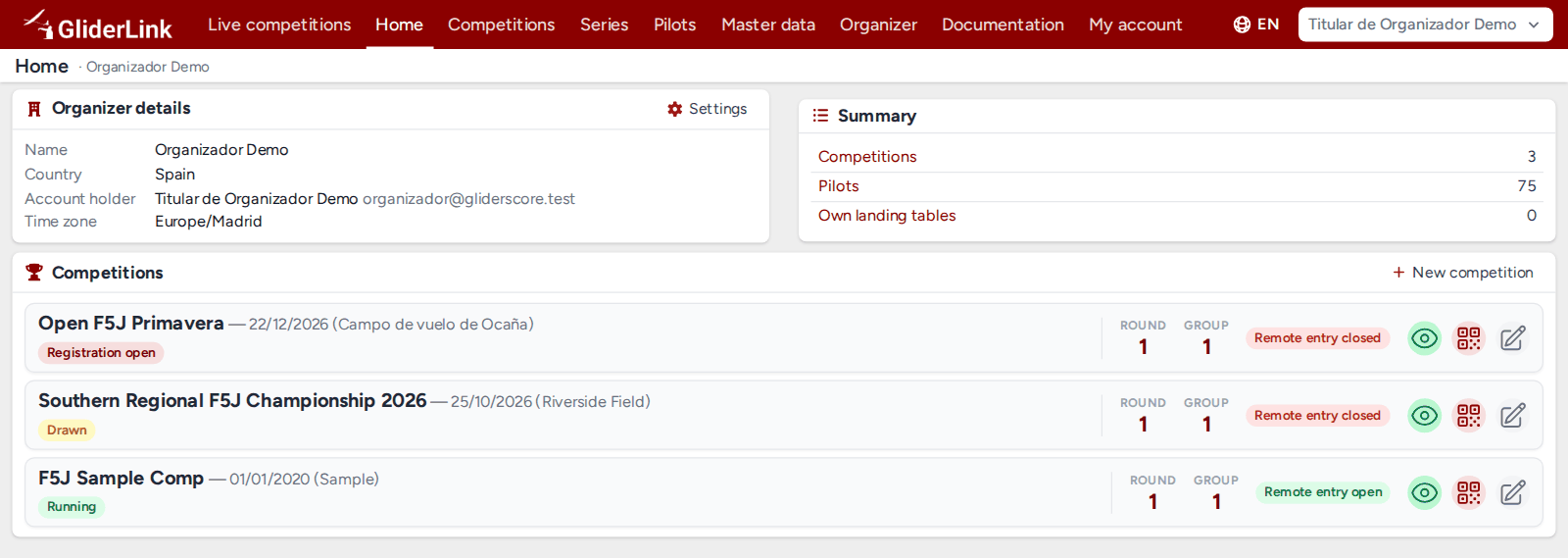
The top bar has Live competitions, Home, Competitions, Series, Pilots, Master data (landing tables, points tables and countries), Organizer, Documentation and My account.
Inside a competition, the tabs are always the same:
Tab
What it is for
Summary
State, progress and recent activity. Change the state and reset scores.
Entries
The pilots of the competition.
Draw
Rounds and groups.
Scoring
The grid where flights are entered.
Competition control
Remote entry: the timekeepers' app and QR codes.
Penalties
Pilot penalties.
Results
Standings.
Reports
Documents to print or export.
Settings
The competition's configuration.
Audit
Who changed what and when.
Importing from GliderScore
If you come from GliderScore, the quickest way to start is to bring your database. The competitions you choose are imported with their entries, draw, flights and penalties, and so are the pilots.
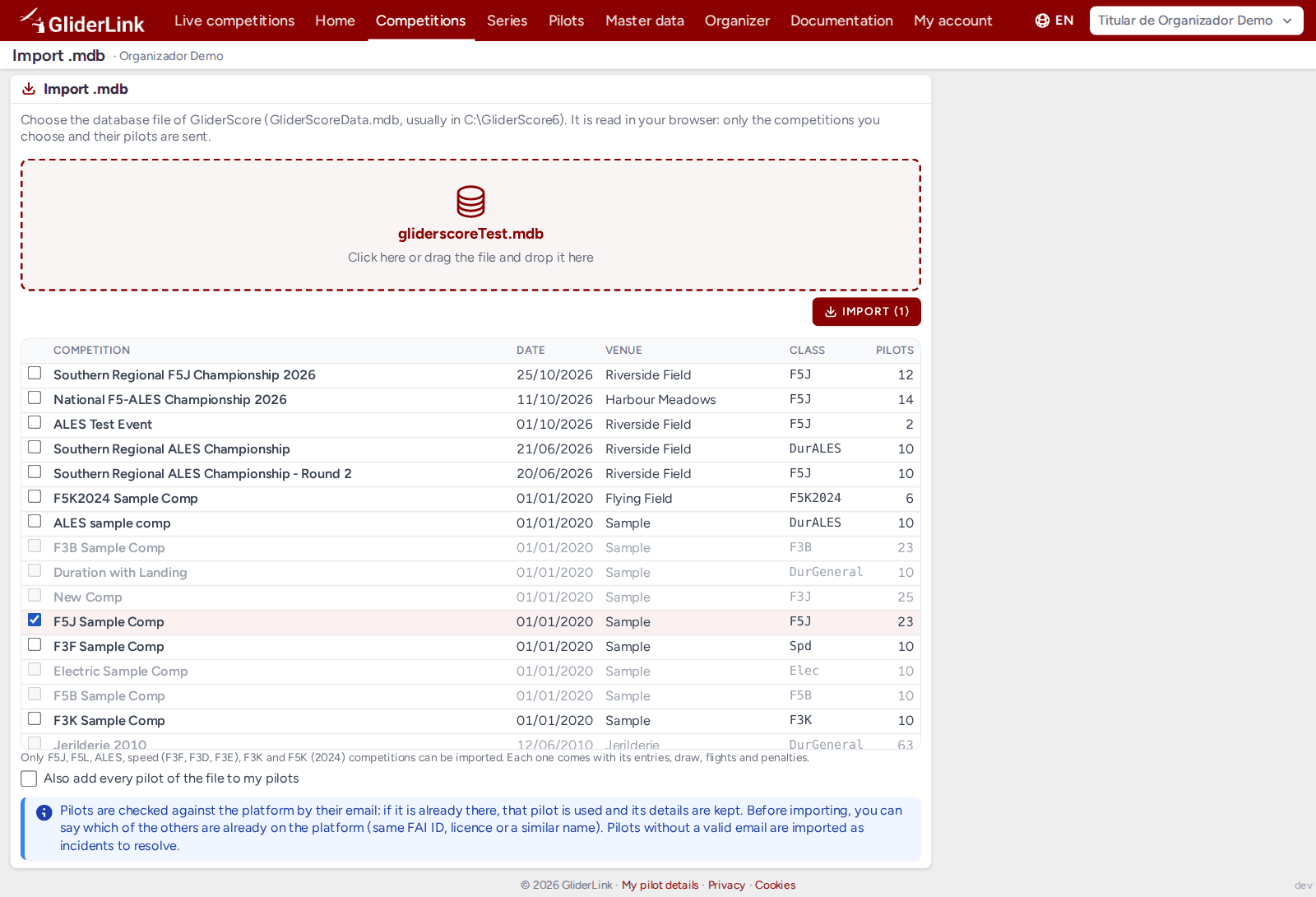
Importing a .mdb: choose the file and tick the competitions.
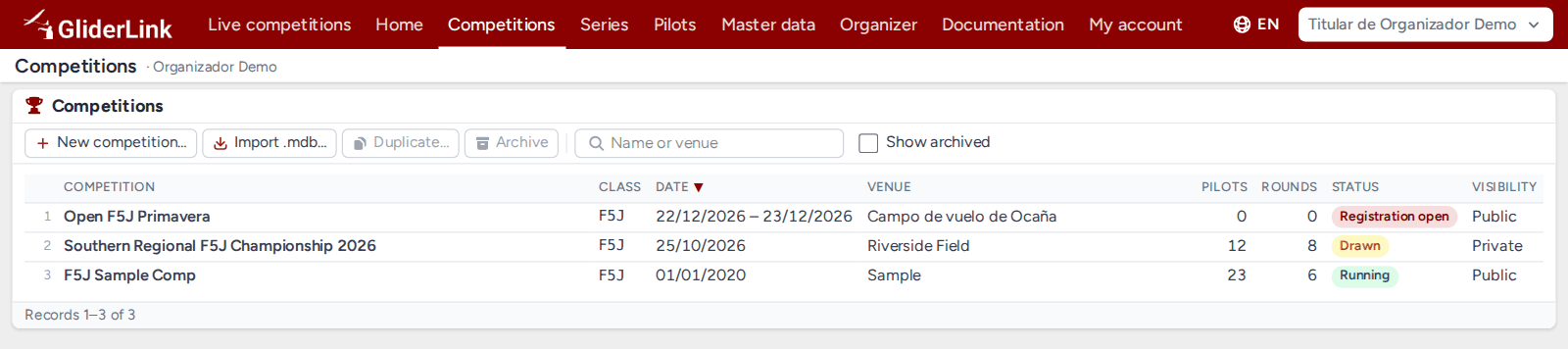
Go to Competitions → Import .mdb.
Choose the GliderScoreData.mdb file (usually in C:\GliderScore6), by clicking the area or by dragging the file onto it. The file is read in your browser and is not uploaded: only the competitions you choose and their pilots are sent.
Tick the competitions. Those of class F5J, F5L, ALES, speed, F3K and F5K (2024) can be imported; the rest are greyed out.
The box Also add all the pilots of the file to my pilots brings to your list even the pilots who are not in the chosen competitions.
Press Import. If a pilot might be one who is already on the platform (same FAI ID, licence or a similar name), you are asked to confirm before going on. For pilots of other organizers only public data is shown, never the email.
A summary appears at the end. Pilots without a valid email are imported as incidents: every pilot needs a valid email, and they are resolved in Pilots.
If there are competitions that can be edited, you are asked Review what has been imported?. If you accept, each one goes through the creation wizard with the data of the file, and nothing changes until you save. Finished competitions are read-only and are not reviewed.
A competition that is already among yours is not imported again: the summary tells you. In an imported competition that already has a draw, the Draw tab says that the draw comes from GliderScore.
Creating a competition
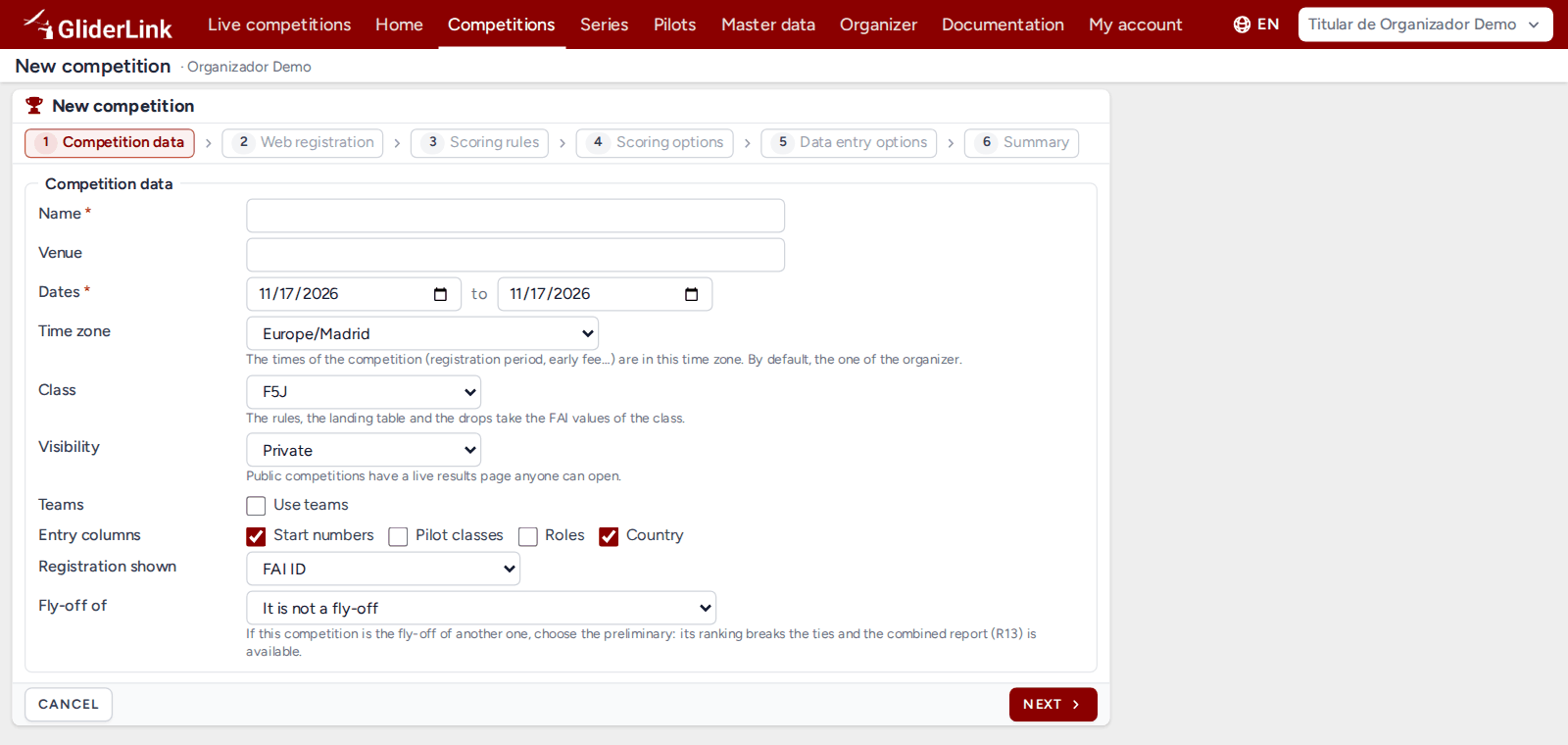
In Competitions, press New competition. The wizard has several steps, and the same ones are repeated later as tabs in Settings.
First step of the wizard: Competition data.
Step
What you decide
Competition data
Name, venue, dates, time zone, class, visibility (public or private), teams, entry columns and fly-off.
Web registration
Whether pilots register online, the deadline, the places and the fee.
Scoring rules
Those of the class, with the FAI values already set. See the page of each class.
Scoring options
Normalisation, decimals, rounding and drops.
Data entry options
Remote entry methods (app and QR), remote entry mode and synchronisation with GliderScore.
At the end you choose Create and publish (it appears on the public pages) or Save in preparation (only you see it). While it is in preparation, every tab shows a notice with a Publish button.
Duplicate: repeats the wizard with the data of another competition already filled in. Dates are not copied and appear in yellow until you set them. The draw and the flights are never copied.
The class can only be changed while no rounds have been drawn.
If a change affects the calculation, you are told how many flights will be recalculated before you save.
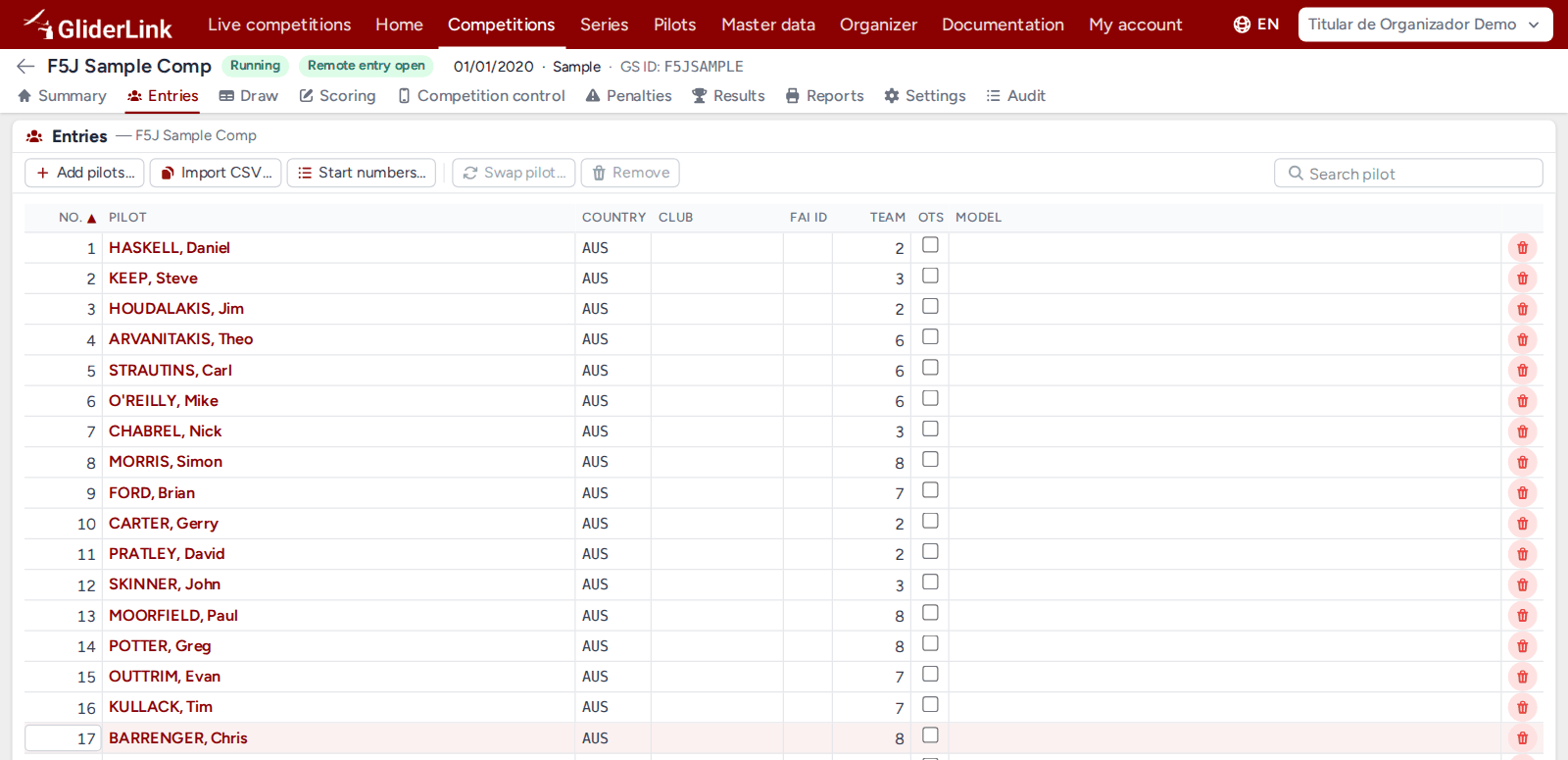
Add pilots…: search among the pilots of your list (by name, email, FAI ID or licence). A pilot from elsewhere on the platform is added only by their exact email. If they do not exist, they are created, with duplicate detection.
Import CSV…: there is a template to download. You upload it, preview it and match similar names before confirming.
Start numbers…: numbers the pilots alphabetically or at random. Team, number and class are edited in the same table.
Swap pilot…: replaces one pilot with another in the entries and in all their flights without data.
Remove is only possible if the pilot has no flights with data.
With a fee, the table shows Fee and Paid, and the footer shows what has been collected and what is pending.
A pilot who arrives after the draw is added from field mode (Pilots → Add a late pilot).
Online registration
If you enable it in Web registration, the public page of the competition shows Register while the deadline is open.
The pilot types their email and accepts the privacy policy. If they are already a pilot on the platform, they see their data and either confirm it or ask to change it.
A provisional registration is created and an email is sent with a link valid for 48 hours. The registration is not valid until they open the link and press Confirm.
On confirming they are registered and receive another email with the payment instructions.
Unconfirmed registrations appear in a separate table, where you can confirm them, resend the email or delete them. They do not enter the draw.
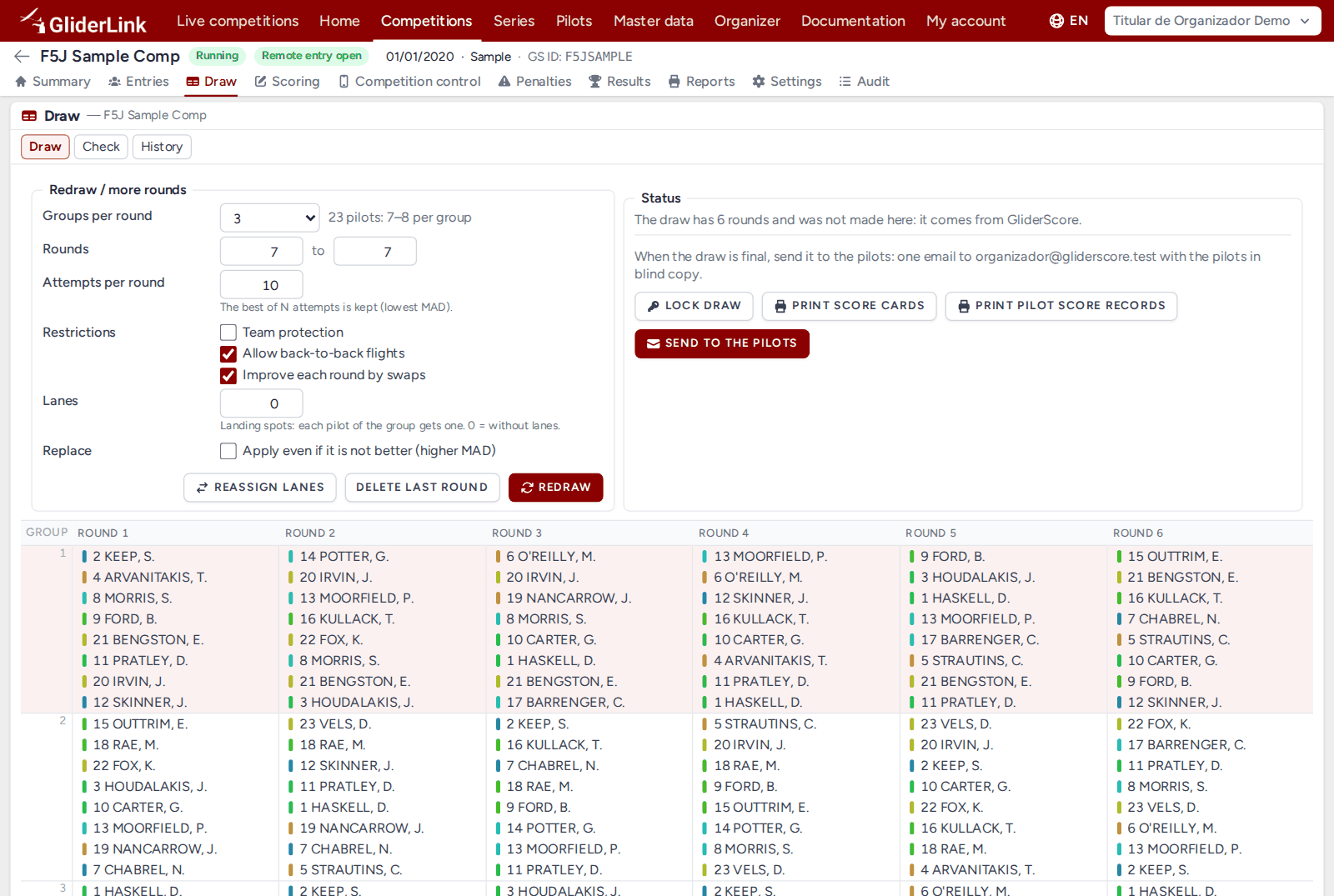
The draw distributes the pilots into groups for each round, trying to make every pilot meet every other pilot a number of times as even as possible. That evenness is measured with the MAD (mean absolute deviation): the lower, the better.
In Draw choose the groups per round (the screen tells you how many pilots each group gets), the rounds and the attempts per round: the best of N attempts is kept.
Choose the restrictions: team protection, allow back-to-back flights and improve each round with swaps.
Press Draw. You see the progress live and, at the end, the MAD obtained. If there was already a draw, the button is Redraw.
With Lanes each pilot of the group is given a landing spot; Reassign lanes redoes it.
Review the Check tab, which verifies that the draw meets what was asked, and the draw History.
When it is final, Lock draw prevents redrawing. Send to the pilots sends a single email with the table of groups to the pilots who have an email (in blind copy).
You can also print the score cards and each pilot's score records. The cards carry the pilot's QR code for remote entry.
Rounds can be added or the last one deleted without touching the earlier ones. A partial redraw counts the MAD from round 1 to the last redrawn round.
Scoring
The Scoring tab is the main screen on contest day.
Round with arrows and one button per group (G1, G2…). Each button is coloured by how much data its group has: green if the group is complete, amber if partial and grey if empty.
Previous, Next and Next without data to move around the groups.
All groups shows every group and reflight of the round in the same grid, with a group column. Refresh brings in whatever has arrived in the meantime through the app or the QR.
Lock group, Refly group and Check scores, explained below.
Entering data
Each cell is saved at once, validated immediately, and the whole group is recalculated. Enter or Tab move to the next cell, the ↑ ↓ arrows change row and Esc undoes. The data columns depend on the class: they are explained on the page of each class.
Upd (updated): it is ticked automatically when any data is entered. A flight scoring 0 can be toggled by double-clicking, to tell a real 0 from a flight without data.
✓ (checked): a box for the scorer; it does not affect the score.
Flights that came from the app or the QR show a phone icon. They can be corrected by hand.
Row actions
The Retired and Actions columns.
Retired: ticking it retires the pilot from the round of that flight to the end of the competition. If you untick it in a later round, they compete again from that round. Earlier rounds never change and what they have already flown still counts; only their flights without data in the rounds they are retired in stop being pending. It asks for confirmation.
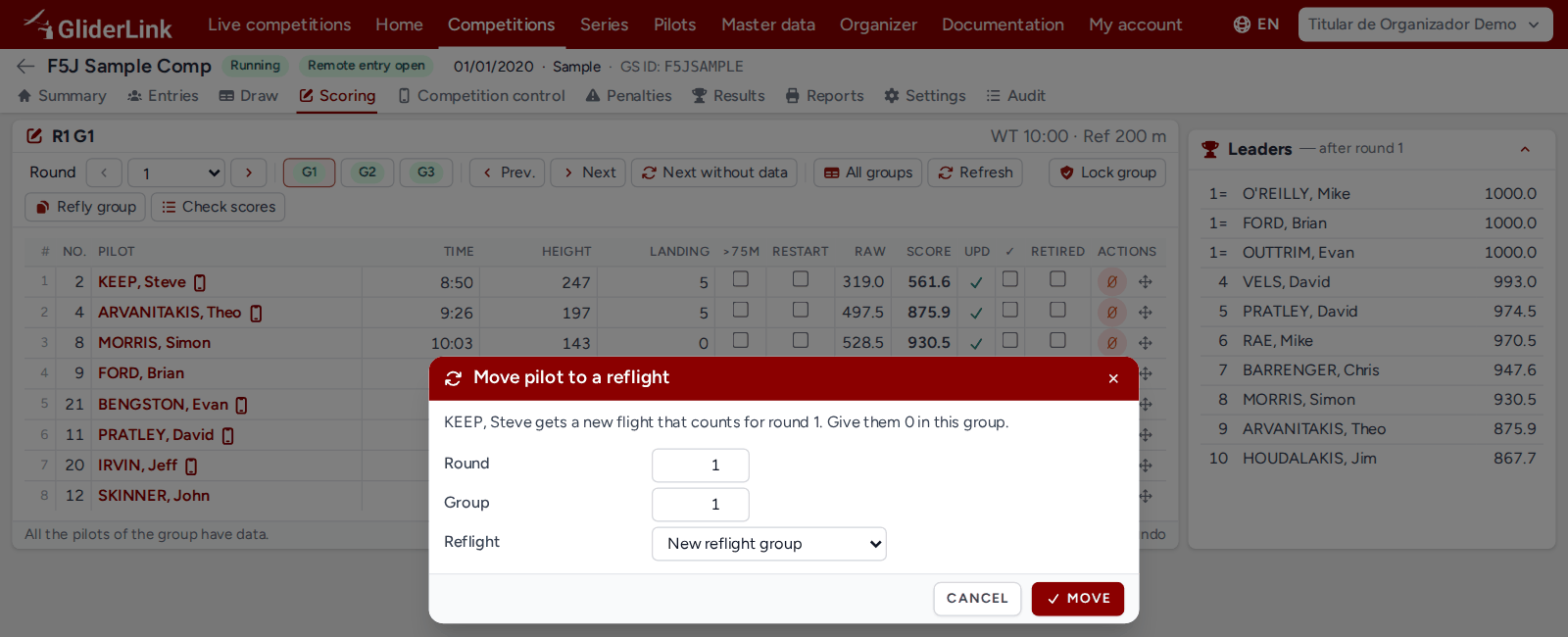
Slashed zero (set the flight to 0): deletes the data of the flight and leaves it as flown with 0 points. It asks for confirmation. It is what a pilot who is granted a reflight must have in the original group.
Four arrows (move): opens the window to move the pilot to another group or to a reflight.
Reflights
There are two ways to give a reflight. In both, the pilot's best score in the round counts, between the original flight and the reflight.
Refly the whole group: with the group selected, press Refly group and confirm. A reflight group is created (it appears in the bar as G1·R1) with the same pilots and the same lanes, empty.
Reflight for a single pilot: press the four-arrows icon in their row.
The Move pilot to a reflight window.
Choose the destination round, group and reflight (New reflight group or an existing one). If the competition uses teams, tick Ignore team clash to move even when there is a team mate in that group. The pilot gets a new flight there that counts for the round of the incident.
The pilot who is granted a reflight must be given 0 in the original group (with the slashed zero). Otherwise the original flight still counts when it is better.
Locking and checking
Lock group disables editing of that group. With the competition finished, or with scores locked, nothing can be edited either.
Check scores lists the flights that look odd (short time, height 0 or very high, empty landing with a time, flights without data) and lets you go through them one by one.
Remote entry: app and QR
Timekeepers can send the flights straight to the grid, without typing. There are two ways, and you enable them in Settings → Data entry options:
The GliderLink mobile app, which connects with the competition's QR code.
Each pilot's QR code, printed on their score card: the timekeeper scans it with the phone camera, with nothing to install.
State: remote entry is open or closed, and you change it by pressing the state button. While it is closed, neither the app nor the QR accept flights.
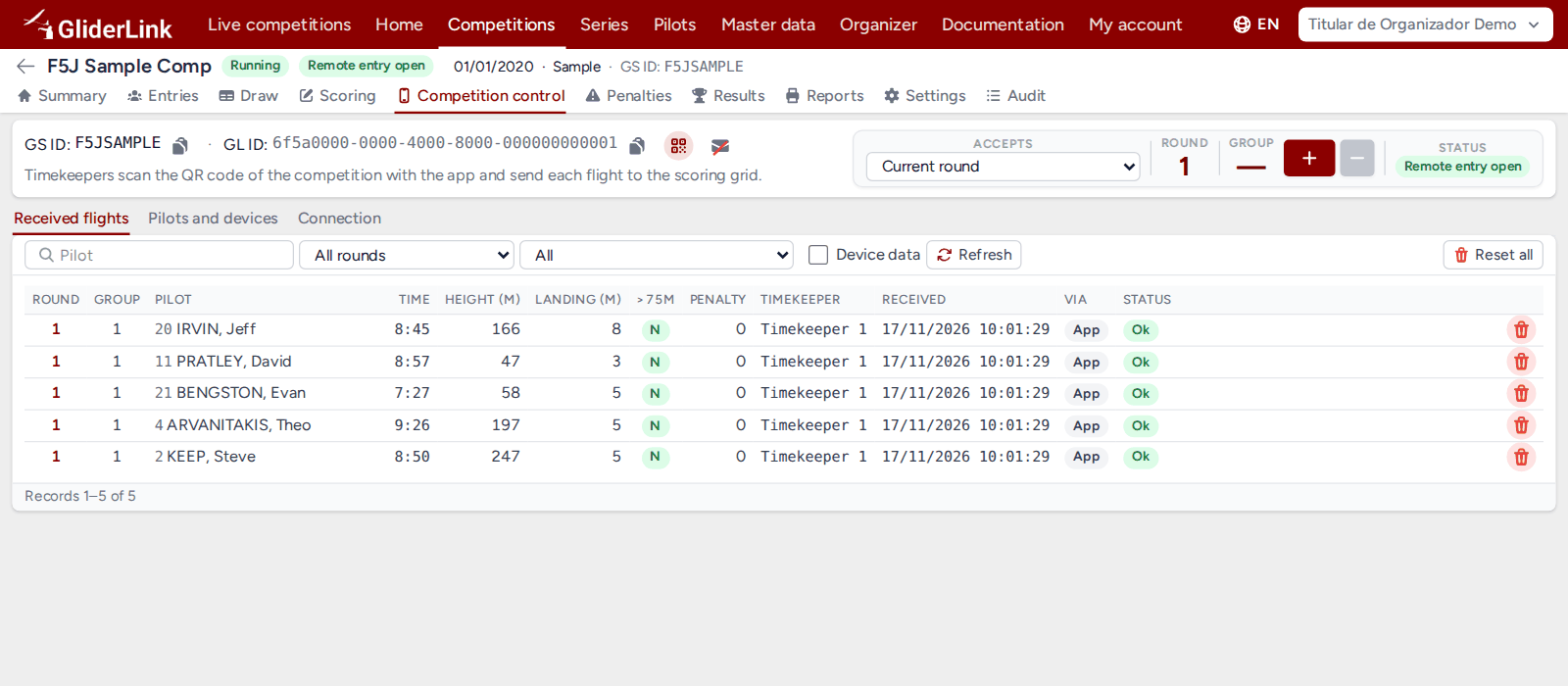
Accepts: which flights are accepted. Any flight (the QR takes the timekeeper to the pilot's first flight without data), Current round (the default: any group of that round) or Current round and group (strict: only the group you open with + and −).
Round and Group in progress, with their + and − buttons.
Received flights: every submission, with its status (Ok or the reason it was rejected), the channel (App or QR) and filters by pilot and round. The device data can be shown with a box.
Pilots and devices: each pilot's models and serial numbers. Connection: identifiers and the enabled entry methods.
Which flight each submission goes to
The server, not the app, decides which flight each piece of data goes to, using the draw:
The group sent by the app is not trusted: the one the draw gave the pilot in that round is used. If they differ, the flight is saved anyway, with an incident visible in Received flights (filter Ok with incident).
If the pilot has an empty reflight in the current round, that is the flight they are due; once it has data, the normal one is due again. Each submission carries the reflight number and goes only into that flight.
If the flight does not exist (the pilot does not fly in that round, or the reflight has not been created), it is rejected with an error and is not saved anywhere else.
If entry is closed or the group is locked, it is rejected.
Sending a flight again with other data corrects it in the same place.
Penalties
The Penalties tab.
With New penalty you choose the pilot, the round (optional), the points and the reason. The penalty is subtracted from the pilot's total in the results at once, and can be edited or deleted. Every change is recorded in the audit.
Results has the tabs Overall, Teams, By round, Flights (detail) and Classes. You filter by range of rounds and by scope (all, country, club or class), and you can apply the drops or not. The Print / PDF and CSV buttons export what you see.
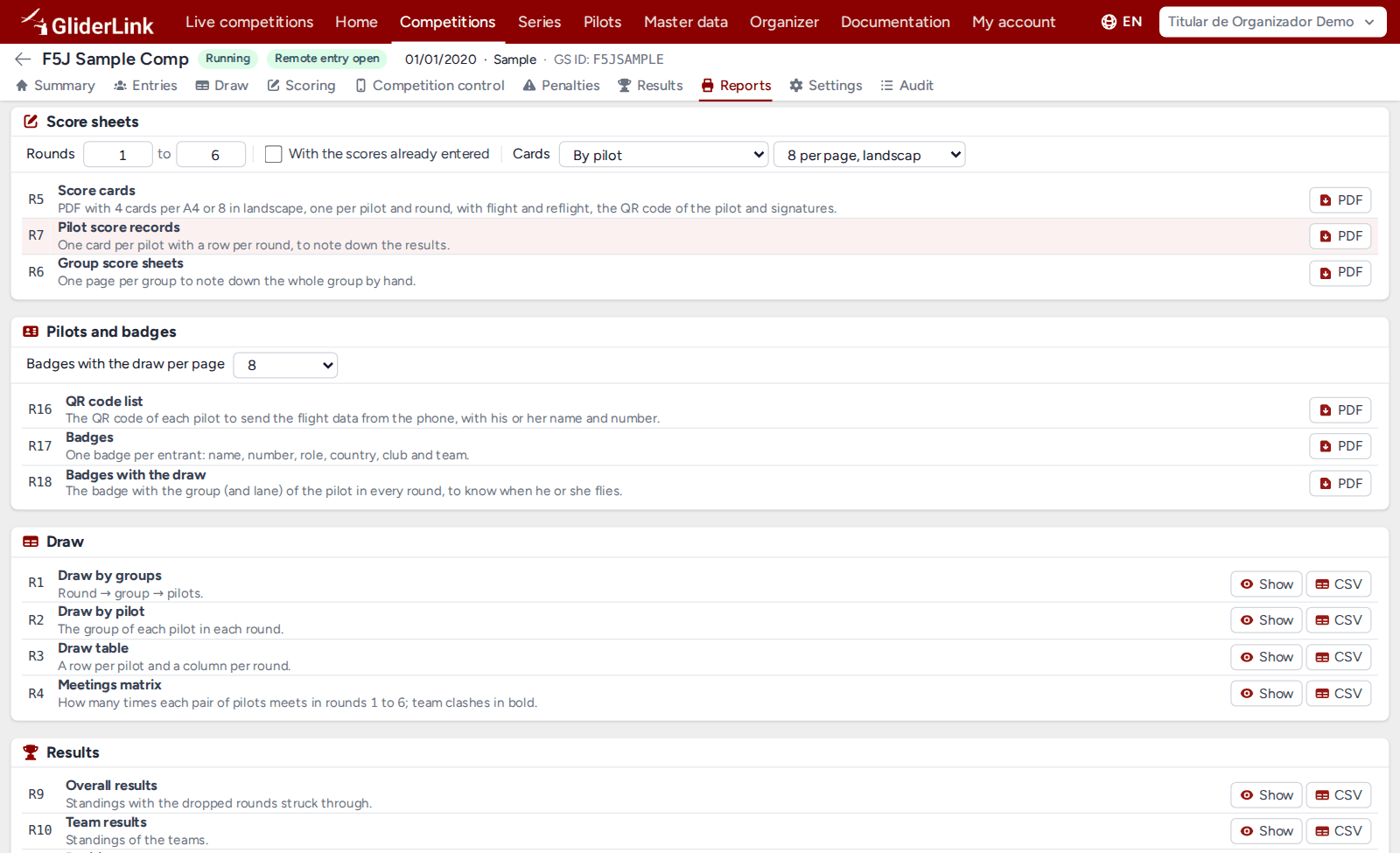
Reports gathers the printable documents: score sheets and cards, badges and QR codes, draw tables and the results.
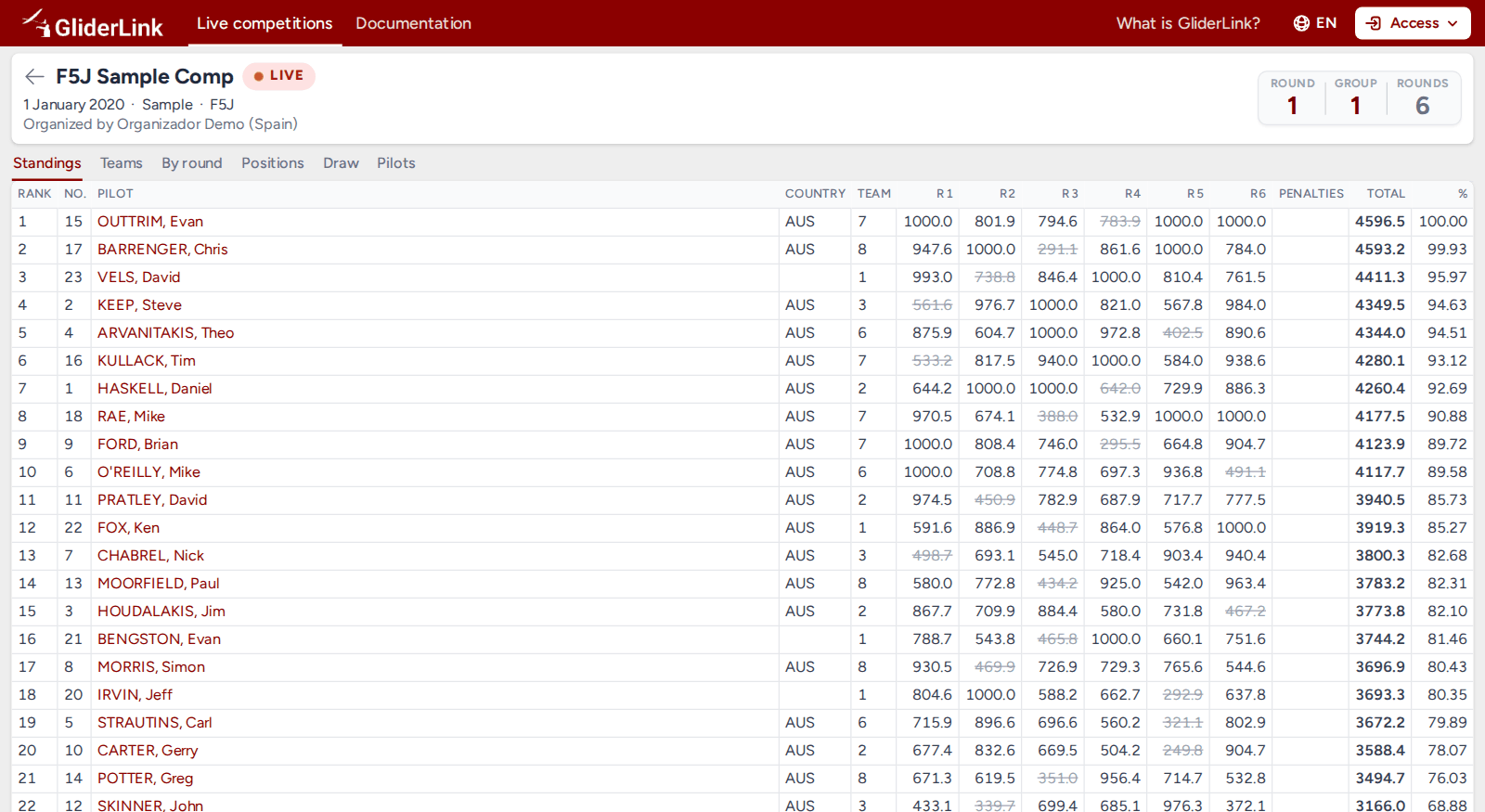
A public competition has its page under Live competitions, with no account needed. It shows the standings, teams, each round, the draw and the pilots, and each pilot's page with their flights. While the competition is running, the page refreshes itself every few seconds. It never shows contact details.
The public page of the competition.
Field mode
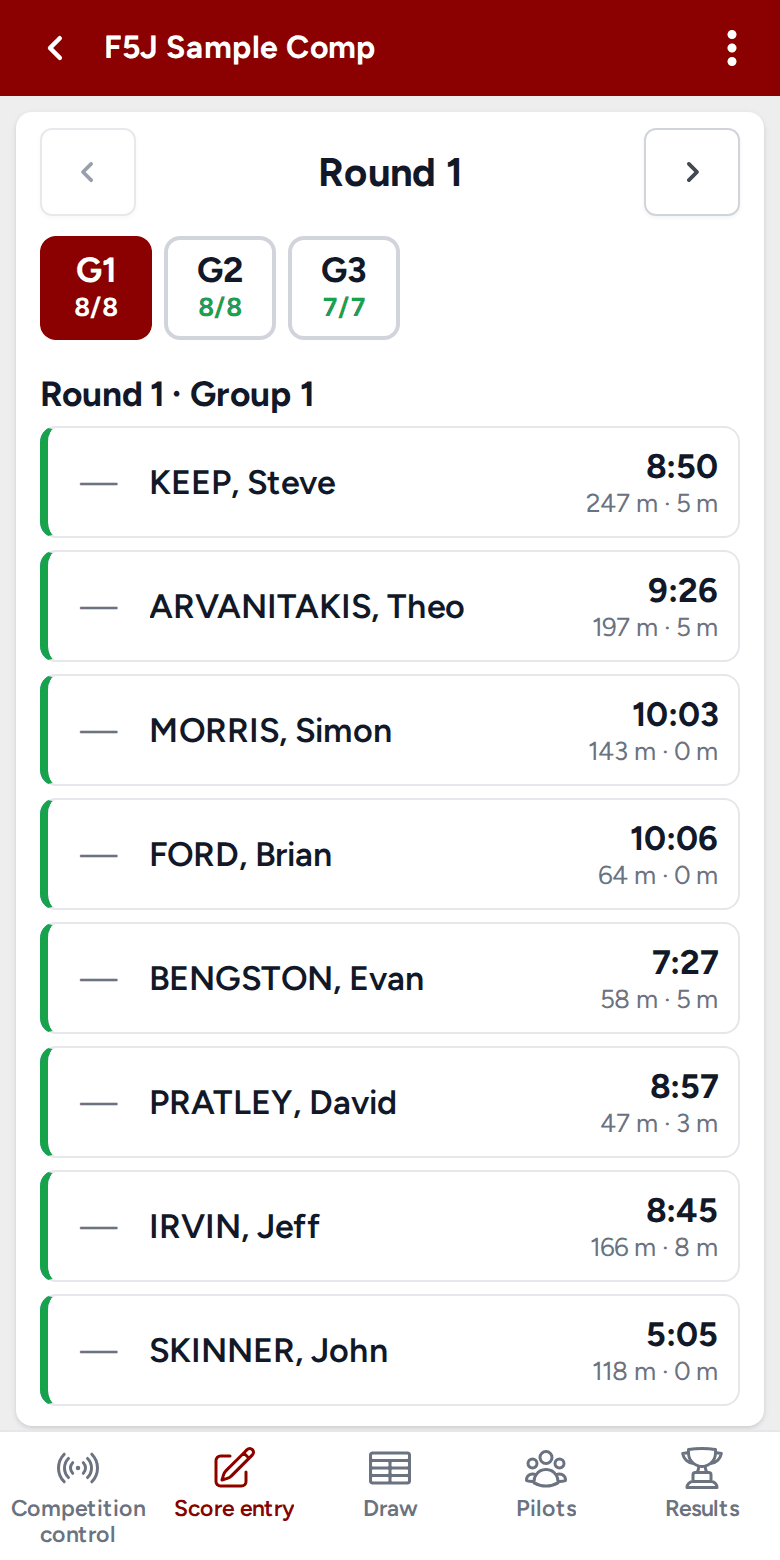
This is a version designed for the organizer's phone at the field, with large text and only what is done there. It opens at /m. You can install it as an app on the phone with the Install app button, and you can sign in with your fingerprint or face if you have registered a passkey.
Field mode, on the Scoring screen.
Competition control: open and close remote entry, current round and group, and see the latest received flights.
Scoring: enter and correct flights. Tapping a pilot in Competition control opens their flight.
Draw (read-only), Pilots (retire and reinstate from the current round, late pilot and penalties) and Standings.
The ⋮ menu leads to the Full version, and from the full version you come back with Mobile version.
Closing, archiving and resetting
Finish moves the competition to finished. Archive hides it from the lists, and you can unarchive it whenever needed.
Reset scores… (in the Summary) empties the data of every flight, deletes the reflights, the penalties and what was received through remote entry, unlocks groups and leaves the competition as freshly drawn. The draw and the registration are kept. It asks for confirmation.
Audit keeps every change with its «before → after», filterable by type, user, pilot, round and date, and exportable to CSV.
The platform makes a backup of the database every night.
Pilots' data is never given to third parties. The full privacy policy is under the Privacy link in the footer of the application, in all seven languages.
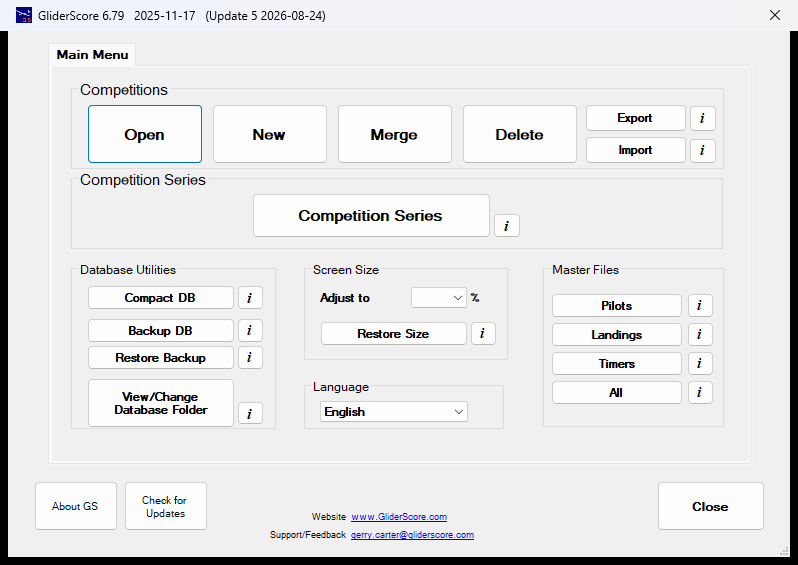 How it looks in GliderScore: Main Menu
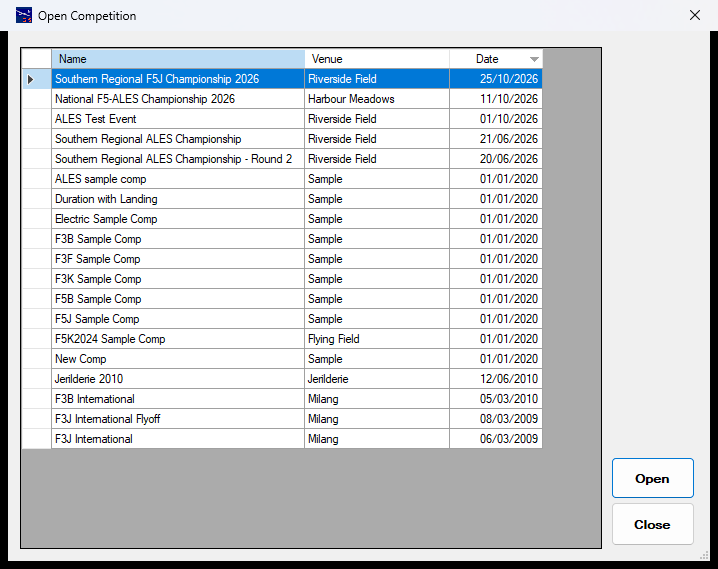 How it looks in GliderScore: Open Competition
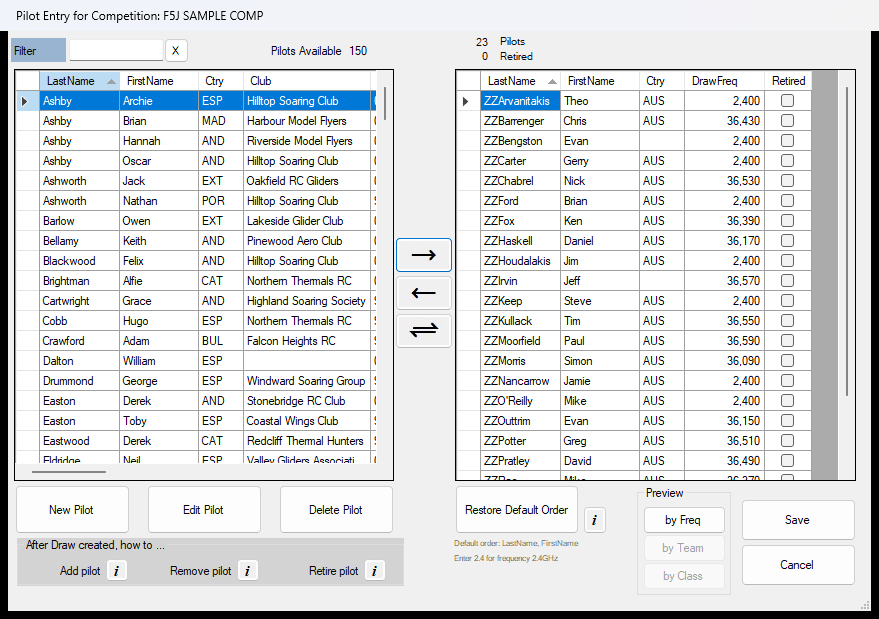 How it looks in GliderScore: Pilot Entry
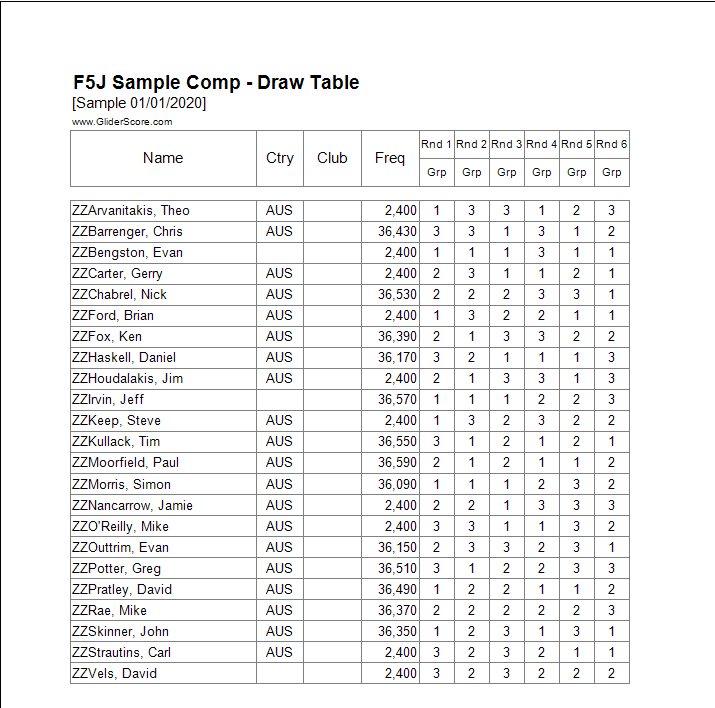 How it looks in GliderScore: Draw Table report
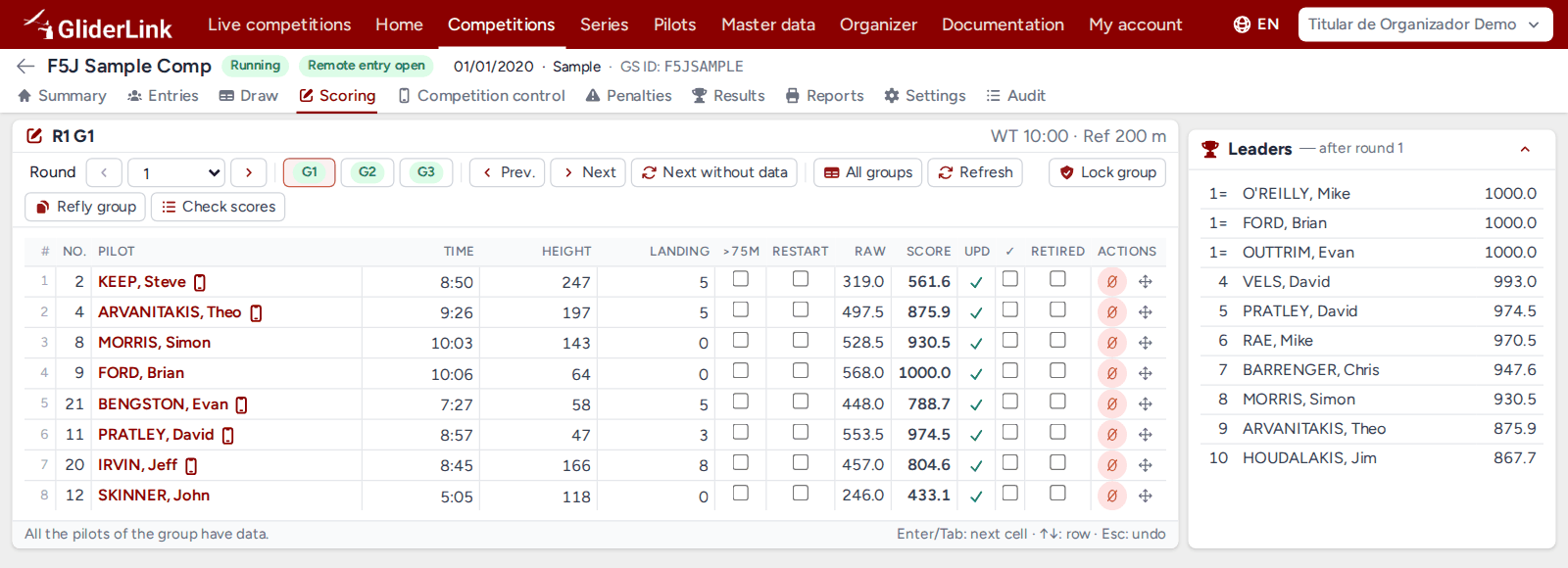
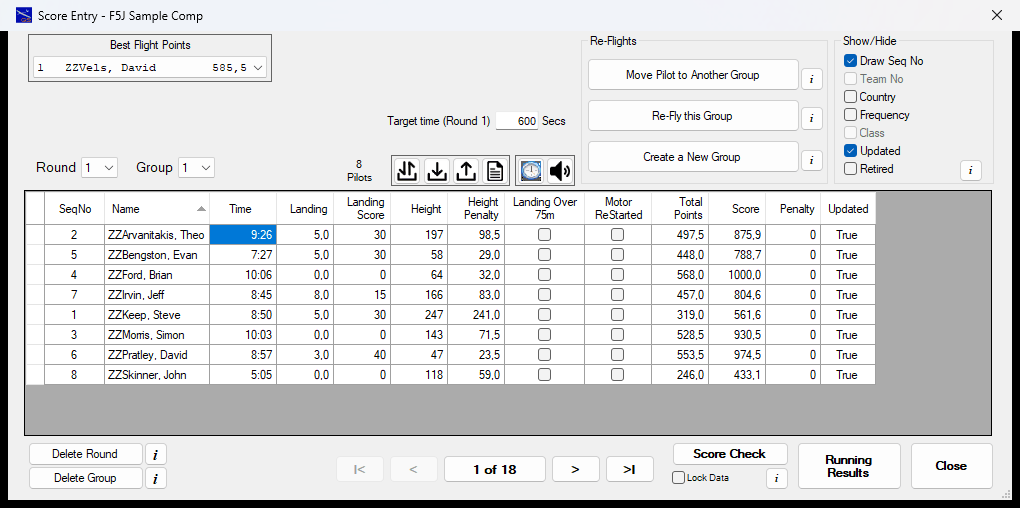 How it looks in GliderScore: Score Entry
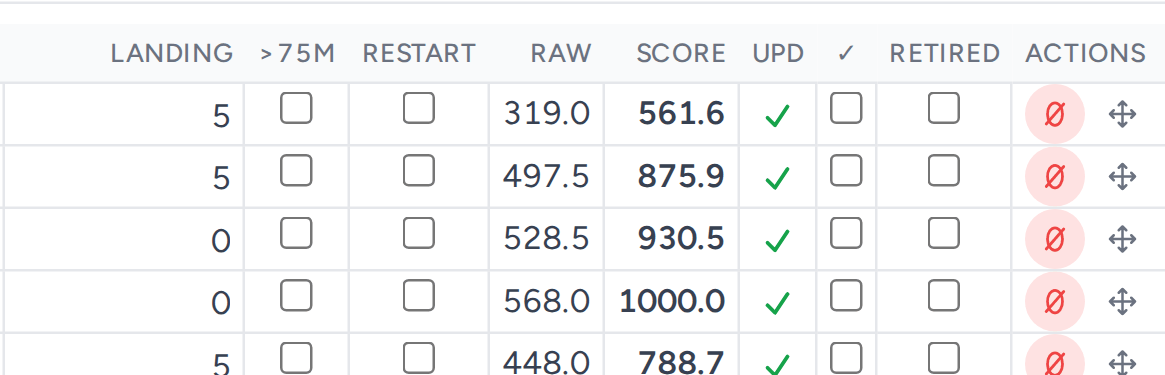
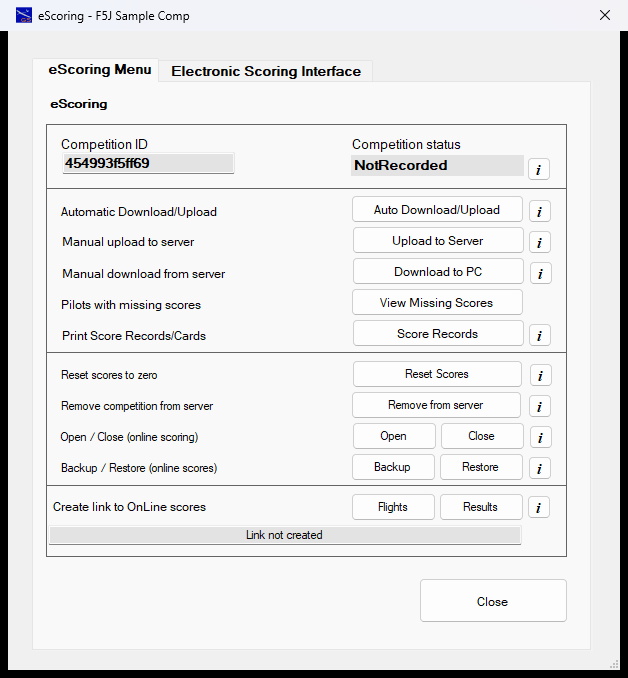 How it looks in GliderScore: eScoring screen


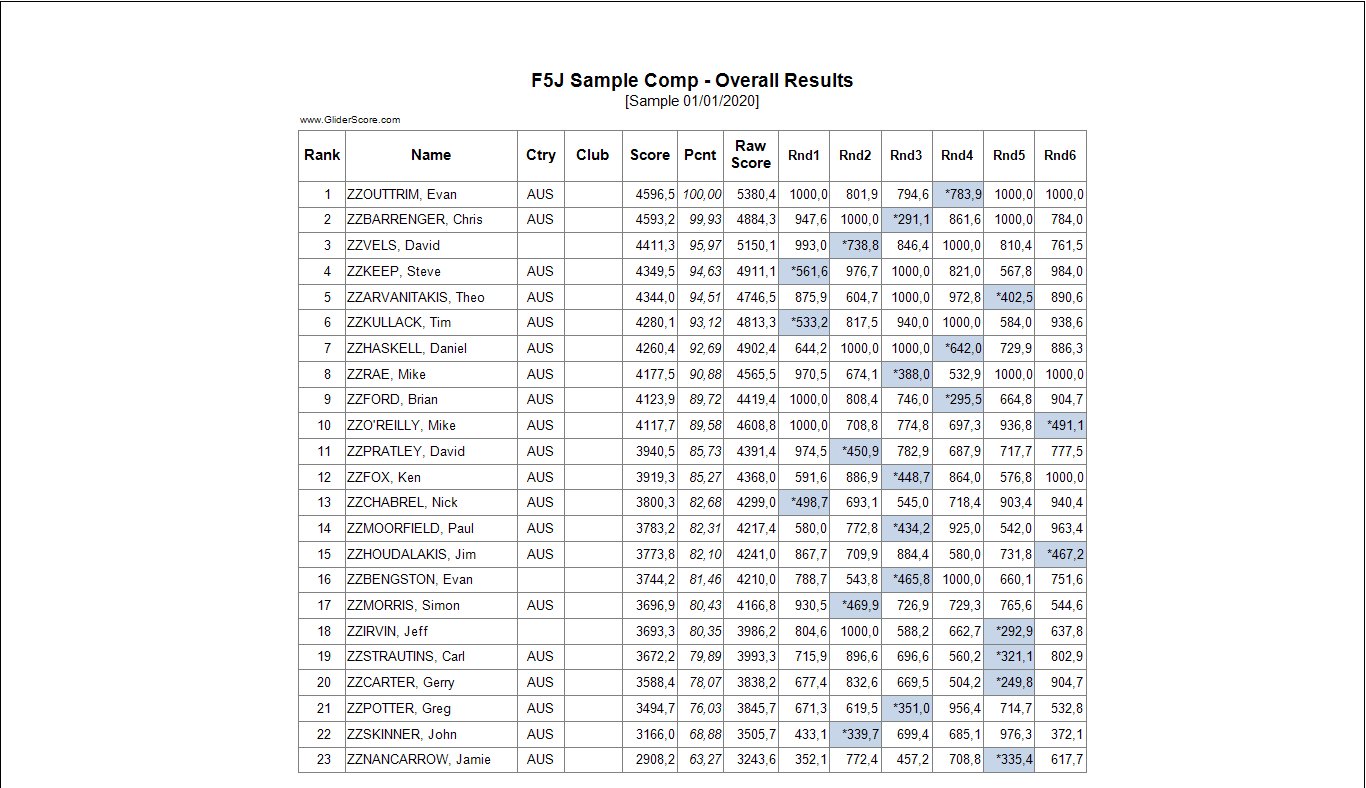 How it looks in GliderScore: Overall Results
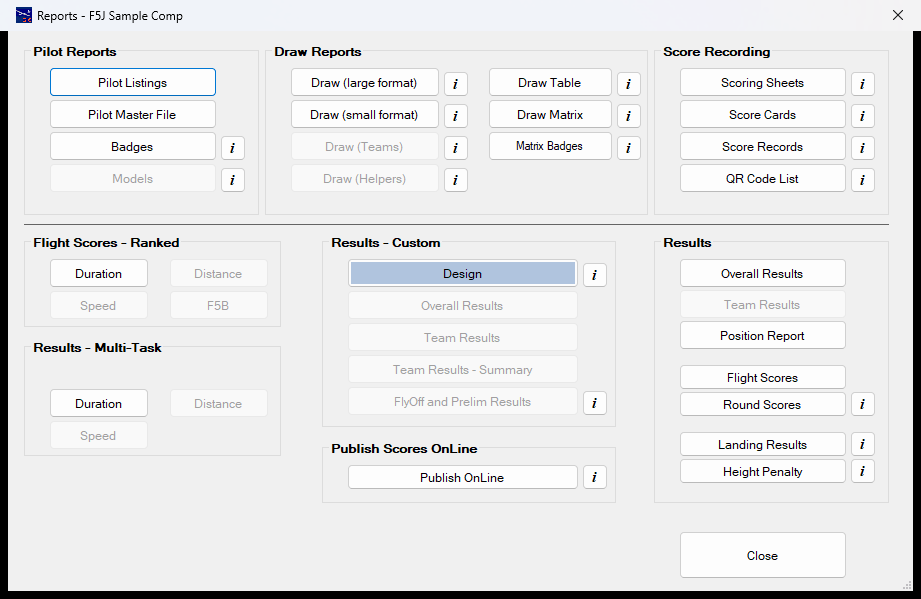 How it looks in GliderScore: Reports screen